
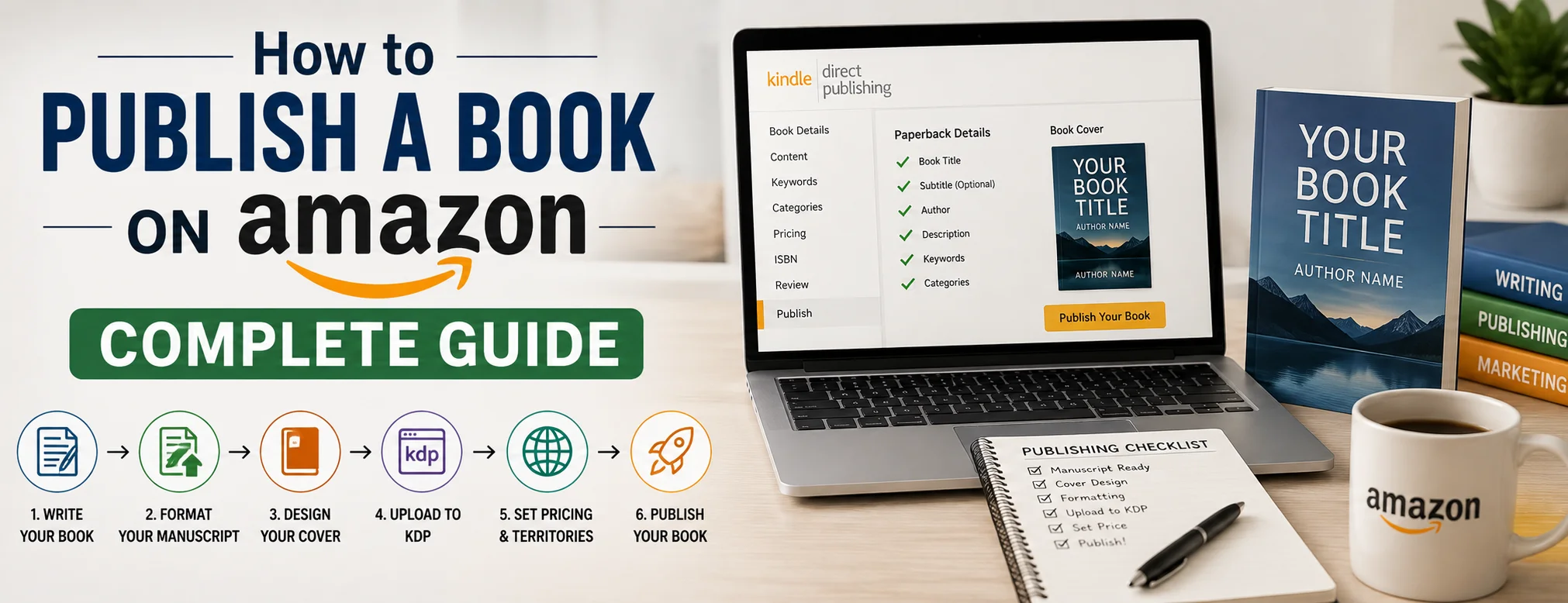
To publish a book on Amazon, you have to create a KDP account, upload your edited manuscript and cover as an eBook and/or paperback, select categories and keywords, set your price and royalty option, then preview and submit for Amazon’s review before it goes live.
Publishing a book on Amazon means putting your manuscript in front of the largest bookstore in the world, using a free platform called Kindle Direct Publishing, or KDP. Writers turn to Amazon because it removes the gatekeepers of traditional publishing: no agent, no acquisitions committee, no waiting eighteen months for a release date. If you have a finished manuscript, or one that’s close to finished, and you want to understand exactly what publishing books on Amazon actually involves, this guide walks through every stage, from setting up your account to pricing your first title. By the end, you’ll know how kindle book publishing on Amazon works in practice, not just in theory, and you’ll have a clear checklist to follow when your manuscript is ready.
At Bookstone Publishers, we work with first-time and returning authors who want a clear path through Amazon KDP without the guesswork. This guide reflects what actually happens on the platform today, including the parts that trip people up.
What Amazon KDP Actually Is
Kindle Direct Publishing is Amazon’s self-publishing arm. It lets any author upload a manuscript and sell it as an eBook, paperback, or hardcover directly to Amazon customers, with royalties paid out monthly. Amazon makes its money by taking a cut of each sale, and you keep the remainder, which for eBooks priced correctly runs as high as 70%.
This is different from working with a traditional publisher, where the publisher owns production and distribution and pays you an advance against future royalties. With KDP, you own the process end to end. That’s the appeal, and it’s also why so many first-time authors get stuck: there’s no editor checking your formatting, no cover designer assigned to your project, no marketing department planning your launch. Every decision is yours.
What You Need Before You Start
Before you even open a KDP account, there are a few things worth having in place. Skipping this stage is where most delays and rejections happen.
- A Finished, Edited Manuscript
- A Professional Book Cover
- An ISBN
- A Properly Formatted Manuscript File
7 Simple Steps to Publish Your Book on Amazon KDP
Once your manuscript, cover, and ISBN decision are ready, here’s the actual publishing process.
Step 1: Finish and Edit Your Manuscript
Before touching KDP, your manuscript needs to be genuinely finished. Not perfect, but complete and edited. A first draft with typos and structural gaps will show up in reviews within days of launch, and early reviews carry disproportionate weight for a new title.
A few things worth doing before you move forward:
- Run your manuscript through a full editing pass, either your own or hire a book editor. Grammar tools catch surface errors, but they miss pacing problems, plot holes, and unclear arguments in nonfiction.
- Get at least two outside readers who aren’t friends or family to give honest feedback.
- Decide on your book’s category and comparable titles now. This shapes formatting decisions later.
Authors who rush this step tend to publish twice: once with an unpolished file, then again after pulling it down to fix what reviewers pointed out. It’s faster to get it right the first time.
Step 2: Set Up Your KDP Account
Head to Amazon KDP and sign in using an existing Amazon account, or create a new one specifically for publishing. Setup is free and takes a few minutes, but there are two parts of account setup that matter more than they seem:
Tax information. Amazon will withhold up to 30% of your royalties if you skip this step, even after you’ve made sales. Fill out your tax interview before you publish anything, not after.
Payment details. Add a bank account for royalty deposits. KDP pays roughly 60 days after the end of each reporting month, so your first payment won’t arrive immediately. You can route royalties from different marketplaces (US, UK, EU, and others) to separate accounts if that suits your setup, or consolidate everything into one.
Once your account is verified, you’re ready to create your first title.
Step 3: Format Your Manuscript
Formatting is where publishing books on Amazon gets technical, and where most first-time authors lose the most time. eBooks and print books have different requirements, so treat them as two separate formatting jobs even if they share the same text.
For Kindle eBooks, Amazon’s Kindle Create tool converts a Word document into a properly formatted eBook file, handling things like a working table of contents, chapter breaks, and reflowable text that adjusts to different screen sizes. For paperbacks and hardcovers, you’ll need a print-ready PDF with correctly sized margins, bleed settings if your book includes images, and a matching page count for your trim size.
If your book is straightforward fiction or nonfiction without complex layouts, Kindle Create and Amazon’s paperback templates can get you through formatting without hiring anyone. Books with tables, illustrations, recipes, or unconventional layouts usually benefit from a professional formatter, since small errors here are the most common cause of rejected or delayed submissions.
Step 4: Design Your Cover
Your cover is the first thing a potential reader sees, in a thumbnail roughly the size of a postage stamp on their phone screen. It needs to work at that scale before it needs to work as full-size art.
Before commissioning or designing a cover, look at twenty bestselling covers in your specific genre. Note the patterns: color palettes, font choices, how much white space they use, whether they lead with an image or with typography. Genre readers recognize these conventions instantly, and a cover that breaks too far from them can signal “wrong shelf” even if the book itself is a great fit.
KDP has its own cover creator for a basic, template-based design, which works for a quick launch but rarely stands out. Most authors either hire a cover designer who specializes in their genre or use professional stock imagery paired with strong typography. This is one area where spending a bit more tends to pay for itself in click-through rate alone.
Step 5: Decide on an ISBN
An ISBN identifies your book for retailers, libraries, and distributors. For Kindle eBooks sold exclusively on Amazon, you don’t need one at all; Amazon assigns its own ASIN automatically. For paperbacks and hardcovers, you have two options:
- Use Amazon’s free ISBN. Amazon becomes the listed publisher of record. This is the simplest route and works fine for most first-time authors.
- Buy your own ISBN. Your name or imprint appears as the publisher instead of Amazon, and the same ISBN can be reused if you ever sell through other retailers or distributors.
If you’re building a long-term catalog under your own imprint, owning your ISBN gives you more control down the line. For a first book, starting with Amazon’s free option and revisiting this decision for a second edition is a reasonable way to keep costs down while you test the market.
Step 6: Create a New Title on KDP
Log into your KDP dashboard and select “Create a New Title.” You’ll be asked to choose a format: Kindle eBook, Paperback, or Hardcover. Each format is set up separately, but they link together under one Amazon listing, so readers see all your available editions in one place. You don’t need to publish every format at once; many authors launch the eBook first and add print editions once the manuscript and cover are finalized.
The setup for each format runs through three main pages: Details, Content, and Pricing.
Details Page
This is where you’ll spend the most time, since it determines how readers find your book.
- Language: Choose the language your book is written in. This affects which marketplace and reader base it’s matched to.
- Title and subtitle: Enter your title exactly as it appears on your cover; Amazon checks for consistency here. Use the subtitle field to clarify the book’s benefit or hook, especially for nonfiction.
- Series information: If this is part of a series, set that up now so future titles link automatically.
- Description: Your book description should answer three questions: who is this book for, what problem or story does it deliver, and why should someone choose it over similar titles. This is a sales copy, not a summary for your own records.
- Keywords: Amazon gives you seven keyword slots. Think in terms of what a reader would actually type into the search bar, not abstract descriptors. Specific phrases tend to outperform broad, generic ones.
- Categories: Choose categories that genuinely match your book’s content and comparable titles, rather than the most competitive-sounding option. A book that ranks first in a smaller, accurate category often sells better than one buried on page ten of a broad one.
Content Page
Upload your formatted manuscript file and cover file here. KDP runs an automated check on both and flags formatting issues before you can proceed. Always preview your book using Kindle Previewer or KDP’s built-in previewer before publishing; this catches layout problems like awkward page breaks, missing images, or a table of contents that doesn’t link correctly.
For print formats, you’ll also select trim size, paper type (white, cream, or color), and cover finish (matte or glossy).
Pricing Page
Set your royalty option and price. For Kindle eBooks, the 70% royalty rate requires pricing between $2.99 and $9.99, and your book must be enrolled to be available across all Amazon marketplaces. Price below $2.99 or above $9.99, and royalties drop to 35%.
Step 7: Publish and Review
Once every page is complete, click Publish. Amazon reviews new titles before they go live, a process that typically takes anywhere from a few hours up to 72 hours, and can extend a bit longer for print formats or books that trigger content review. English-language eBooks are often live within about 12 hours; print formats and non-English titles sometimes take longer.
Almost nothing here is permanent. You can fix typos, swap out your cover, adjust keywords, or change pricing long after your book is live, and the update goes through a shorter review without affecting your existing reviews or sales rank.
Common Mistakes First-Time Authors Make
A few patterns show up again and again with new KDP authors:
- Publishing before the manuscript is truly ready. Rushing to hit a launch date usually costs more in early reviews than it gains in speed.
- Skipping the tax interview. This is the single most common cause of unexpectedly low first payments.
- Using generic keywords. Broad terms like “fiction book” compete against millions of listings. Specific, reader-language phrases perform better.
- Ignoring categories. Authors often chase the biggest category instead of the most accurate one, which buries their book instead of helping it rank.
- Underinvesting in the cover. A weak cover suppresses click-through rate no matter how strong the writing is inside.
After You Publish: What Actually Drives Sales
Uploading your book is the starting line, not the finish. Amazon ranks search results based largely on sales velocity, relevance of your keywords and categories, and how well your listing converts browsers into buyers. That means your work continues after launch:
- Monitor which keywords are driving impressions and adjust the ones that aren’t performing.
- Gather early reviews from readers, since review count and rating both influence how your book is displayed.
- Consider Amazon Advertising once your listing is polished, since ads amplify a strong listing but won’t fix a weak one.
- Track your data over time and apply what you learn to your next title. Each book you publish builds on lessons from the last one.
Should You Publish on Amazon Yourself or Hire Help?
This is really the core question once you understand the process. Publishing on Amazon yourself is absolutely possible, plenty of authors do it. It makes the most sense if you’re comfortable with formatting software, have time to troubleshoot technical issues, and are treating this as a learning process rather than a one-shot launch.
Hiring help makes more sense if you’d rather spend your time writing your next book instead of debugging margin errors, if you want your cover and formatting to look genuinely professional rather than “good enough,” or if you only get one real shot at a strong launch and don’t want to risk it on trial and error.
At Bookstone Publishers, this is exactly the gap we fill. We handle the editing, formatting, cover design, and KDP setup so your book goes live correctly the first time; without the rejected uploads, guesswork on categories, or last-minute formatting fixes that eat up weeks of your time.
Final Thoughts
Publishing a book on Amazon looks intimidating from the outside, mostly because there are a lot of individual settings to work through: account setup, tax details, formatting, cover design, keywords, categories, pricing, and distribution choices. In practice, it’s a checklist you move through once and then repeat, more efficiently, with every title after your first.
If you’d rather have an experienced team handle formatting, cover design, and the KDP setup process for you, Bookstone Publishers works with authors at every stage, from a rough manuscript to a fully published, market-ready book on Amazon.
Frequently Asked Questions
How long does it take to publish a book on Amazon?
Once your manuscript, cover, and metadata are ready, the KDP upload process itself takes under an hour. Amazon’s review adds a few hours for eBooks and up to a few days for print formats before your book is live and searchable.
Do I need an ISBN to publish on Amazon?
No. Kindle eBooks use Amazon’s own identifier automatically. Paperbacks and hardcovers need an ISBN, but you can use Amazon’s free one or supply your own.
How much does it cost to publish a book on Amazon?
Publishing itself is free. Your real costs come from optional services like editing, cover design, and formatting help, which vary widely depending on your book’s length and complexity.
Can I publish the same book in multiple formats?
Yes. eBook, paperback, and hardcover editions link under one Amazon listing, and you can publish them together or roll them out separately as each is ready.
What’s the difference between KDP Select and going wide?
KDP Select makes your eBook exclusive to Amazon for 90-day terms in exchange for Kindle Unlimited earnings and promotional tools. Going wide lets you sell across multiple retailers but excludes Kindle Unlimited income.